


GreenLoop IT Solutions : Articles
The April 2026 Remote Desktop Update: Understanding RDP Signing and Your Options
If you use Remote Desktop to connect to another computer — such as a work PC, a server, or a remote workstation — you may have recently started seeing unfamiliar warning dialogs appearing before your session opens. You are not alone, and your computer is not broken.
Microsoft rolled out changes as part of its April 2026 Windows security updates that fundamentally alter how Windows handles Remote Desktop Protocol (.rdp) files. These changes affect all supported versions of Windows, including Windows 10 and Windows 11. This article explains what changed, why Microsoft made the change, and what you and your organization should do about it.
What Changed?
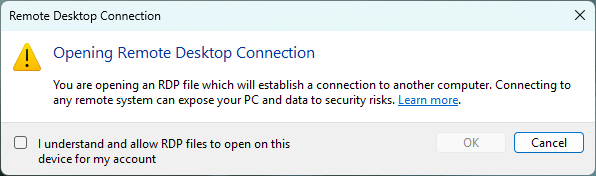
Starting with the April 2026 cumulative security updates (KB5083769 for Windows 11, KB5082200 for Windows 10), Microsoft changed how the Remote Desktop Connection application responds when you open an .rdp file. There are now two new dialogs that may appear:
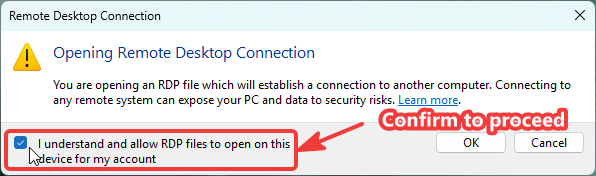
Dialog 1 — One-Time Educational Warning
The first time you open any .rdp file after installing the April 2026 update, Windows shows a one-time introductory prompt. This prompt explains what RDP files are and warns you about the risks of opening them. You must click OK to acknowledge that you understand before the connection can proceed.
This prompt only appears once per user account. Once you have clicked OK, it will not appear again on that machine for that user.
Dialog 2 — Per-Connection Security Review
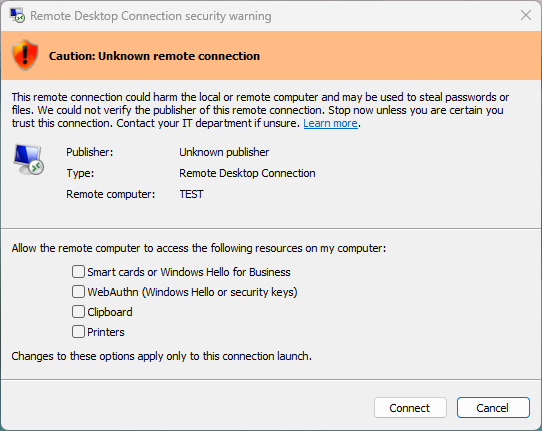
Every time you open an .rdp file going forward, a second security dialog will appear before the connection is established. This dialog shows:
- Whether the RDP file is digitally signed by a verified publisher, or unsigned (“Unknown publisher”)
- The hostname or IP address of the remote system you are connecting to
- A list of all local resources that the RDP file requests access to (drives, clipboard, printers, cameras, microphones, etc.) — all disabled by default
If the RDP file is unsigned, the dialog will show a red or yellow “Caution: Unknown remote connection” warning with the publisher listed as Unknown. If the file is digitally signed, the publisher name will be shown along with a prompt to verify it before connecting.
As part of this change, Microsoft removed the “Don’t ask me again for connections to this computer” checkbox for unsigned files. Users are required to review and acknowledge the dialog for every connection when the file is unsigned.
These new prompts only appear when you open an .rdp file.
Remote Desktop connections that are started by opening Remote Desktop Connection (mstsc.exe) and typing a computer name or IP address directly do not see the warning.
Microsoft-hosted remote access platforms such as Azure Virtual Desktop and Windows 365 use Microsoft-managed, signed .rdp files and will also be unaffected.
Why Did Microsoft Make This Change?
The short answer: attackers have been actively weaponizing .rdp files to steal credentials and compromise systems via a technique called RDP phishing, and Microsoft decided to act.
Let’s explain how .rdp files work in order to better understand the risk of this attack methodology.
An .rdp file is a plain-text configuration file that tells the Remote Desktop client how to connect to a remote system. It can also instruct Windows to automatically share local resources — including drives, clipboard, printers, cameras, and microphones — with the remote computer the moment the connection opens.
Attackers have exploited this by crafting malicious .rdp files and distributing them through phishing emails or compromised websites. When a victim double-clicks the file, their computer silently connects to an attacker-controlled server and begins sharing local resources. From there, the attacker can:
- Browse and copy files from the victim’s local drives
- Intercept credentials from the clipboard (such as copied passwords)
- Redirect authentication prompts from the remote session to the local device, capturing multi-factor authentication responses
- Record audio or video through microphone and camera redirection
This attack vector has been used in real-world campaigns. Microsoft has specifically cited the Russian state-sponsored group APT29 (also known as Cozy Bear) as one of the threat actors that has been using malicious .rdp files to steal documents and credentials from targeted organizations.
So Microsoft’s April 2026 update establishes a “trust boundary” for .rdp files: files that have not been specifically treated as trusted are now treated as untrusted by default, and the new warning dialogs are intended to force users to deliberately review and confirm what they are authorizing before connecting.d.
GreenLoop’s Perspective
We understand and support the security intent behind this change. RDP phishing is not a technique we see often, but it’s a real threat we expect to grow over time if unchecked. So requiring users to confirm intent before establishing a potentially untrusted Remote Desktop connection is sound. And digital signing is a well-established method for determining whether .rdp files should be considered previously trusted.
That said, this change was rolled out without advance notice as part of a routine monthly security update, with no migration period for organizations that depend on .rdp files for critical daily operations. A change of this scope would normally be accompanied by more time for IT teams to plan and prepare, and so many organizations are experiencing unnecessary disruption as a result. We are working with our managed
What Should Your Organization Do?
Organizations have several options moving forward, depending on your current and long-term remote access strategy, risk tolerance, and operational considerations.
Organizations that rely on .rdp files should be especially sure to take this opportunity to establish a clear, deliberate strategy for what Remote Desktop use looks like in your organization. The main options are:
Option 1: Move to Signed RDP Files
Digitally signing your .rdp files is the approach Microsoft intends and the most durable solution. When an .rdp file is signed with a certificate your organization controls, the per-connection dialog changes from a red “Unknown publisher” warning to a blue “Verify the publisher” prompt displaying your organization’s name. Users also regain the ability to save their connection preferences for signed files.
In order to implement this, your organization will need:
- To establish new IT SOPs to ensure that all .rdp files in use are appropriately digitally signed. Each RDP file needs to be digitally signed, so this can be cumbersome for organizations where there are a large number of unique .rdp connections in use (for instance, where each user connects to their own office desktop).
- To determine whether to use an internally-generated code signing certificate, or purchase a 3rd party certificate. Most enterprises already have a certificate issuance and deployment infrastructure (a PKI) and so an internally-generated certificate is straightforward to generate and distribute. However, many SMBs do not have a PKI, so must decide whether to pay for a 3rd-party code-signing certificate (typically several hundred dollars/year) or establish a method to distribute an internally-generated certificate such that all of their managed
- To engage IT in order to identify all .rdp connections in use across your organization, digitally sign, and distribute new .rdp files. As outlined above, many organizations will also need to implement steps to distribute trusted signing certificates as well.
If GreenLoop manages your environment and you want to explore this path, contact us — we can help determine specific steps and recommendations needed in your environment alongside your security and operational stance.
Option 2: Revert to Previous Behavior via Registry or Policy
As part of this change, Microsoft has provided registry settings that allow administrators to suppress the new dialogs and restore the previous connection behavior. This is a reasonable short-term measure, particularly for managed environments where users are already trained to exercise appropriate caution with RDP connections.
Important Caveat
Microsoft has explicitly stated that the ability to revert this behavior via registry may be removed in a future Windows update. Treat this as a temporary bridge, not a permanent solution.
Because this was the previous default behavior prior to the April 2026 update, reverting to it is generally considered an acceptable baseline risk — provided your users are not in the habit of opening .rdp files from untrusted sources. The specific steps are below (however, if you’re a GreenLoop client and you’d like to implement this, please contact us rather than attempting to update this yourself).
Option C: Modify Remote Access Strategy
Organizations willing to invest in a longer-term change may wish to evaluate remote access methods that do not rely on Remote Desktop, such as Azure Virtual Desktop, Windows 365, or GreenLoop’s “Connect” remote access solution. If you’re a client, contact your GreenLoop Account Manager if you have questions about optimal remote access methods or strategy.
For GreenLoop Clients
If your organization is a GreenLoop-managed client, we are already on this. We will be reaching out to your decision-makers to discuss the options above and help determine the most appropriate path forward for your specific environment. Any necessary configuration changes will be managed at the organizational level through our endpoint management platform — you do not need to take action on individual machines.
If you are an end user at an organization we manage and are encountering these prompts, please contact us before making any changes to your system. We want to ensure any adjustments are consistent and aligned with your organization’s agreed strategy.
If You Are on a Personal or Unmanaged Device
If your computer is not managed by GreenLoop and you are encountering these prompts when connecting to servers or systems you trust, you can apply the registry settings below to restore the previous behavior on your own machine.
Security Reminder Before You Proceed
Only apply these settings if you are connecting to remote computers that you fully trust and recognize. Never open an .rdp file that was sent to you unexpectedly, downloaded from a website, or received from someone you do not know. These dialogs exist to protect you from exactly that scenario.
Suppressing the Dialogs via Registry
Two registry values are needed. The first suppresses the new per-connection security dialog (Dialog 2). The second marks the one-time educational prompt (Dialog 1) as already acknowledged.
Registry Value 1 — Suppress the per-connection security dialog:
Key:   HKEY_CURRENT_USER\Software\Microsoft\Terminal Server Client
Value: RdpLaunchConsentAccepted
Type:  DWORD (32-bit)
Data:  1
Registry Value 2 — Mark the educational prompt as already acknowledged:
Key:   HKEY_CURRENT_USER\Software\Microsoft\Terminal Server Client
Value: RdpLaunchConsentAccepted
Type:  DWORD (32-bit)
Data:  1
Step-by-Step Instructions
Follow these steps to add both values using the Windows Registry Editor:
- Press Windows + R, type regedit, and press Enter. Click Yes if prompted by User Account Control.
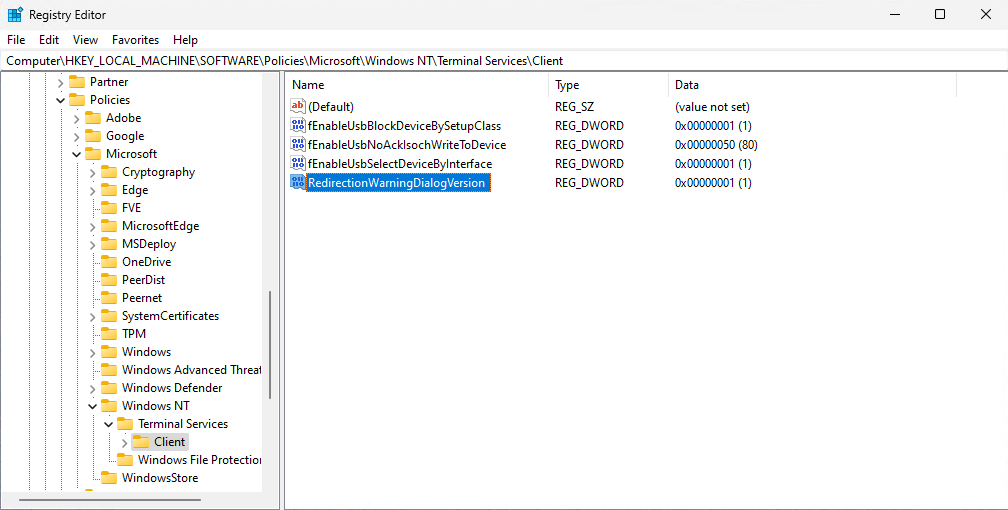
- Navigate to: HKEY_LOCAL_MACHINE > SOFTWARE > Policies > Microsoft > Windows NT > Terminal Services > Client. If the “Client” key does not exist, right-click “Terminal Services”, select New > Key, and name it Client.
- Right-click in the right pane and select New > DWORD (32-bit) Value. Name it RedirectionWarningDialogVersion and set its value data to 1.
- Now navigate to: HKEY_CURRENT_USER > Software > Microsoft > Terminal Server Client.
- Right-click in the right pane and select New > DWORD (32-bit) Value. Name it RdpLaunchConsentAccepted and set its value data to 1.
- Close Registry Editor. The changes take effect immediately — no restart is required.
Staying Safe: What to Always Keep in Mind
Whether or not you apply the registry settings above, these principles should always guide how you handle .rdp files:
- Never open an .rdp file that arrived in an unexpected email, even if it appears to come from someone you know.
- Never open an .rdp file downloaded from the internet unless you are absolutely certain of its source and legitimacy.
- Always verify the hostname shown in the connection dialog before clicking Connect — make sure it matches the server or computer you intend to reach.
- Review the resource redirections listed in the security dialog. If the file is requesting access to your local drives, camera, or microphone and you don’t expect that, do not proceed.
- If you are ever unsure whether an .rdp file is legitimate, contact your IT department before opening it.
Need Help?
If you’re a client and have questions about how this change affects your organization or your devices, please open a support ticket. We are here to help you navigate this transition in a way that keeps your environment secure without unnecessary disruption to your business.
If you’re not a client, contact our technical sales team to see how we can help!
Further Reading:
