


GreenLoop IT Solutions : Articles
GreenLoop Connect: Downloading Signed RDP Files from the Access Portal
What this article covers
GreenLoop RDP Connect is the portal at rdp.greenloopsolutions.com. You use it to download the connection files for the remote computers you have access to. You sign in with your own work email address, see the computers assigned to your account, and download a ready-made .rdp file for each one.
This guide covers the invitation email, the first sign-in, and the download. The portal is only for downloading the RDP file. How you use the Remote Desktop connection itself does not change, so this guide does not cover it.
Why We Use GreenLoop RDP Connect
An .rdp file is a plain text configuration file. It names the computer to connect to, and it also controls which parts of your computer are shared with the remote computer, such as your drives, clipboard, printers, and microphone. Because the file is only text, anyone can write one and email it to you, and attackers now do this. Windows now checks every .rdp file you open and asks you to approve it.
The portal deals with this problem where the files are created. GreenLoop digitally signs every file the portal produces, so Windows can show you who created the connection and confirm that nobody changed the file after it was signed. An administrator chooses the settings inside the file. Because access is managed in one place, we can grant, change, or remove access without sending anyone new files.
For background on the Windows prompts and why they appeared, see The April 2026 Remote Desktop Update: Understanding RDP Signing and Your Options. In short, unsigned connection files now show a red “unknown publisher” warning that you cannot turn off permanently, and signed files from the portal do not show it.
Your Invitation
Access starts with an invitation. When GreenLoop adds you to the portal, Microsoft sends a guest invitation email to your work address, and you accept it once. Accepting the invitation links your existing work account to the portal. It does not create a new password.
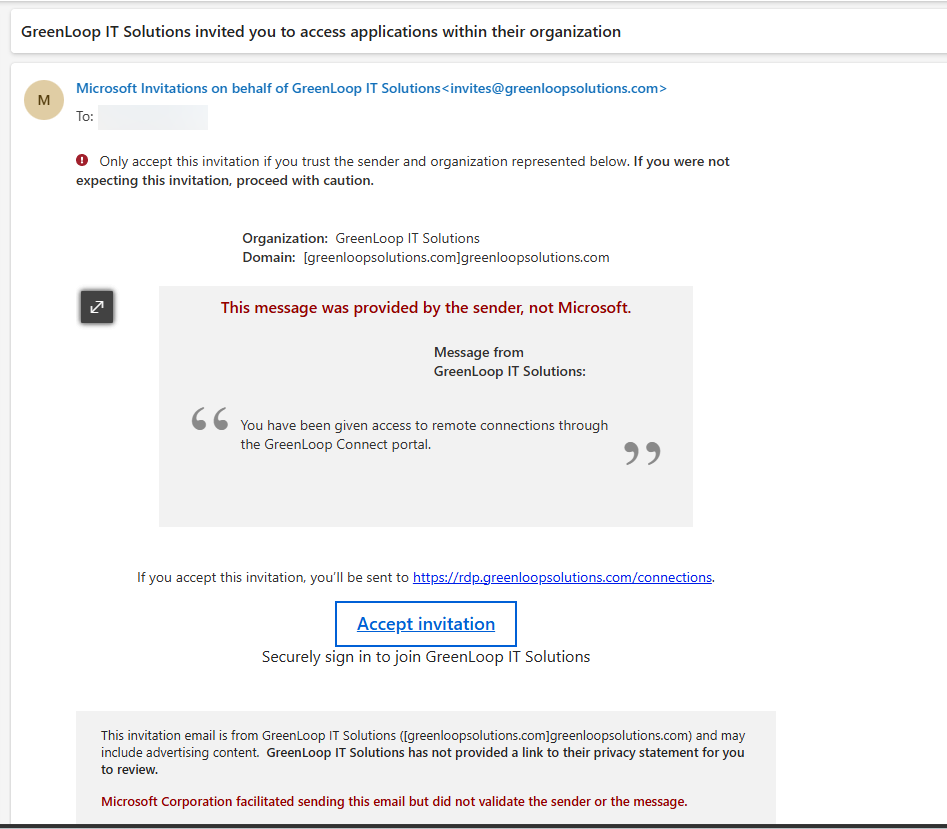
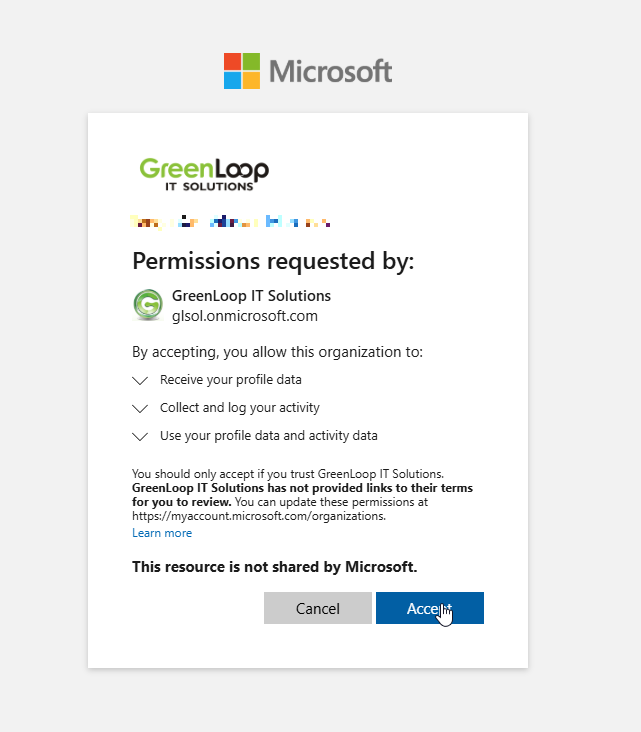
Open the invitation and select Accept invitation. Sign in with your work account when asked. You may also see a one-time consent prompt that lists what the portal can see about you. If you can, accept the invitation from a device you normally work on. This step takes less than a minute.
Signing In
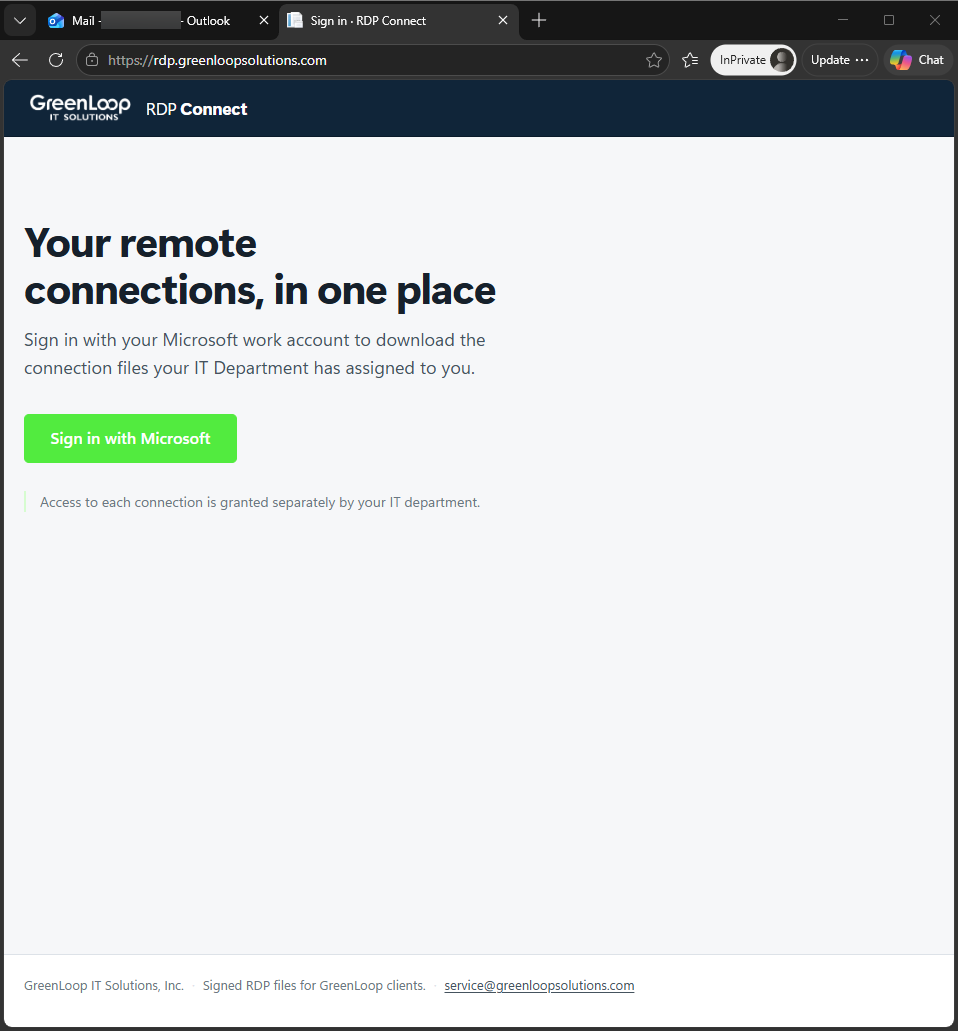
After you accept the invitation, go to rdp.greenloopsolutions.com and sign in with the same work account. We recommend that you bookmark the address after you sign in.
Finding Your Connections
After you sign in, you see the My connections page. Each entry shows the computer name, its host address, and the company it belongs to. If your access is for a limited period, the entry also shows the date your access expires. If a connection goes through a gateway, the entry says so.
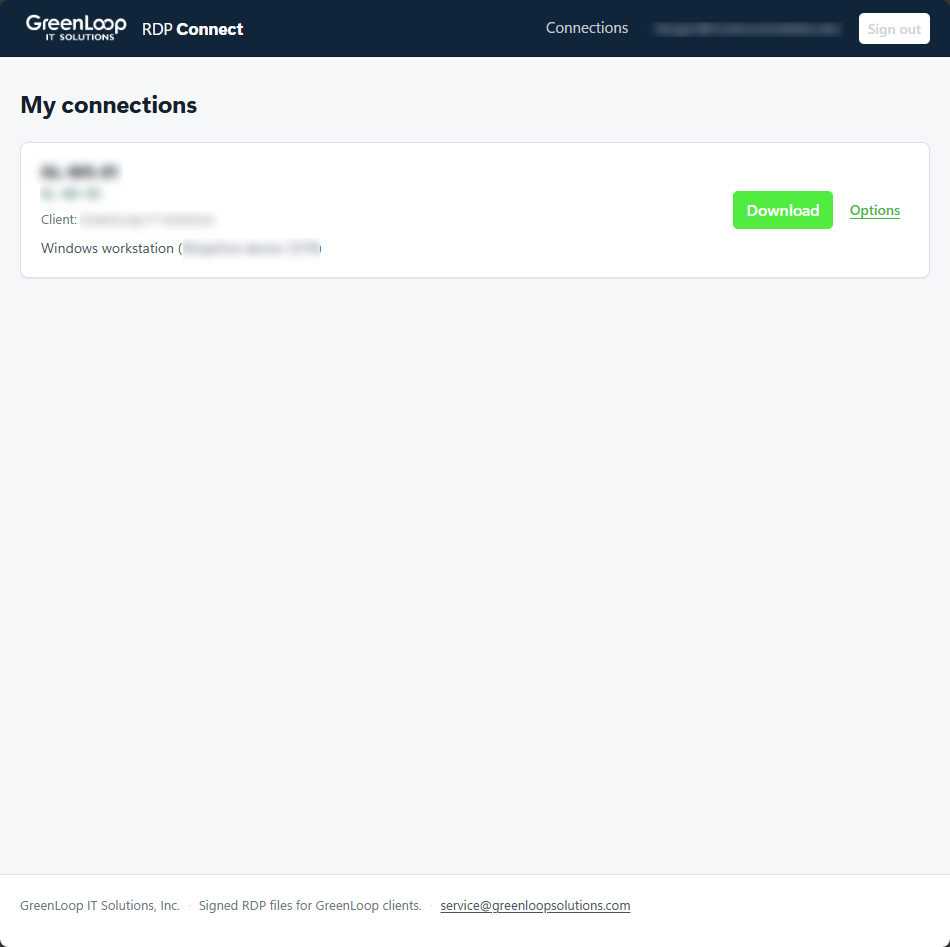
Each entry has two buttons:
- Download gives you the connection file immediately, with the settings your administrator chose.
- Options opens a details page where you can change some display and sound settings before you download.
If no connections are assigned to your account, the page says so. This means your access has not been set up yet or has expired. It does not mean the portal has a problem.
Adjusting Options Before You Download
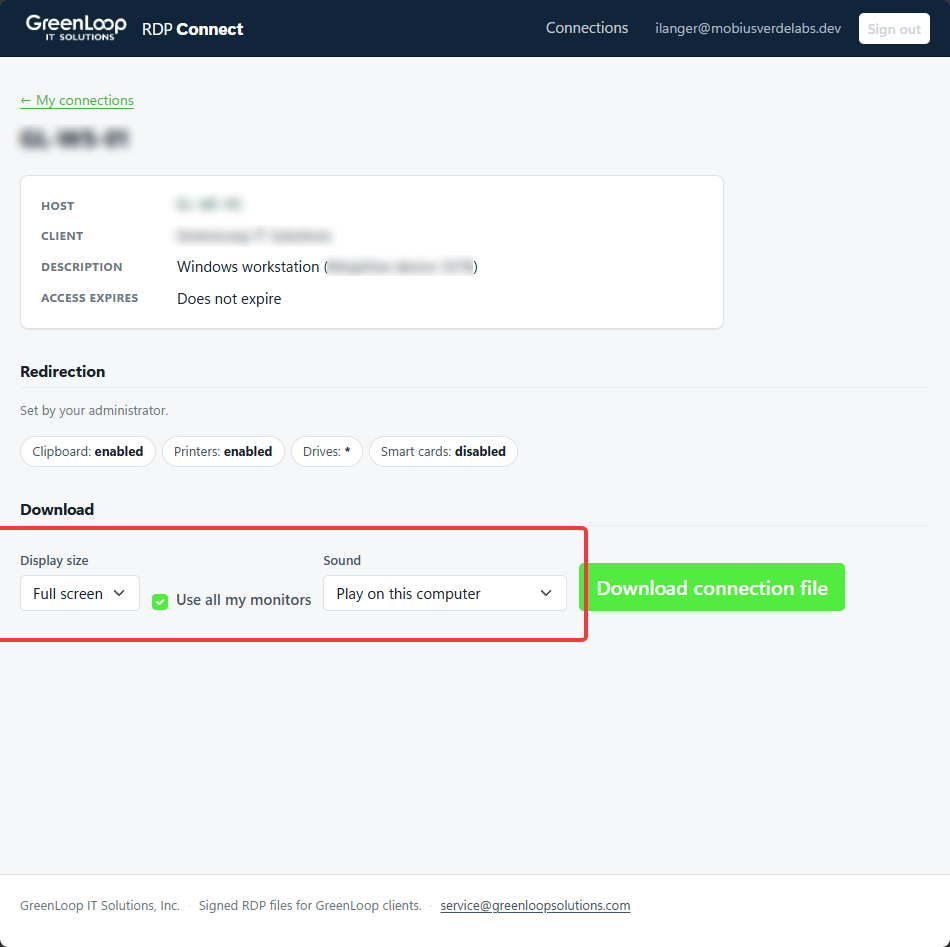
The Options page shows how the connection is configured and lets you change a small number of settings. The settings you see depend on the connection.
- Display size sets full screen or a fixed window size.
- Use all my monitors shows the session across every screen connected to your computer.
- Sound sets whether audio plays on your computer, on the remote computer, or nowhere.
The same page lists the redirection settings (clipboard, printers, drives, and smart cards) under a Redirection heading and shows whether each one is enabled or disabled. Your administrator sets these, and you cannot change them here. Attackers misuse redirection settings in connection files, so administrators keep control of them. Some connections have no settings you can change, and the page says so.
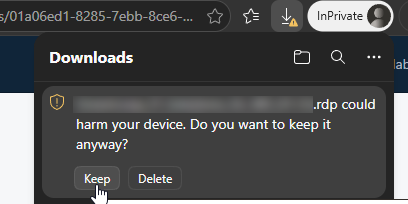
Follow the instructions on the screen to get past the browser warnings and open the file.
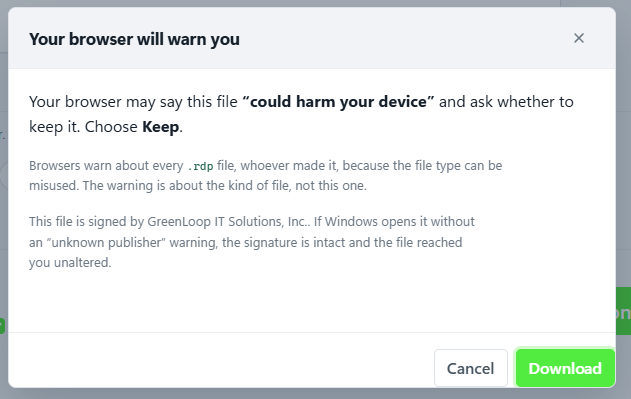
If your browser asks, click Keep. Chrome and Edge warn about every .rdp file by default.
How to Tell If It Worked
After you download the file, move it to the location you prefer, such as your desktop, and connect as you normally do. You should not see an “unknown publisher” warning, and you should connect to the remote computer as usual. If you see a warning, or the connection does not work, contact our service desk.
Frequently Asked Questions
I already have an .rdp file on my desktop that works. Do I need the portal?
Yes. Delete the file on your desktop after you confirm that the new one works. An older file is unsigned, so Windows cannot tell you where it came from, and it keeps whatever settings were current on the day it was made.
Is this a new password to remember?
No. The portal uses the Microsoft 365 work account you already have, with the same multi-factor authentication method you already use. The guest invitation links your account to the portal and does not create a new account.
I never got an invitation email. Should I be concerned?
No. In some cases you may already have guest access. If you expect to have access, try to sign in at rdp.greenloopsolutions.com. If you see an error message, contact the GreenLoop service desk.
The computer I need access to doesn’t show up in the portal.
Contact the GreenLoop service desk. Tell us what you see, or do not see, in the portal, and we will take care of the rest.
Can I email a connection file to a colleague who needs the same access?
No, each person should sign in to the portal and download their own file. In most cases, RDP files are unique to each user and will not give your colleague access. Ask your Security Authorizer to request access for them instead.
Does the file keep working forever once I have downloaded it?
It keeps working until the remote computer changes or your access ends. If the computer you connect to changes, you need a new .rdp file. GreenLoop will tell you in advance if your file or access is going to expire.
We would like remote access set up for more of our team. What is the next step?
Have your Security Authorizer contact the GreenLoop service desk and tell us who needs access and to which computers. We send the invitations and set up the access, and each person receives their own invitation.
