


GreenLoop IT Solutions : Articles
How to Set Up Google Chrome Bookmark Sync for Business Use
If you use Google Chrome on more than one computer, enabling Chrome Sync can save time and improve productivity. When synchronization is enabled, your bookmarks, saved passwords, browser settings, extensions, and open tabs automatically follow you from one device to another.
For business users, we strongly recommend using a Google account associated with your company email address instead of a personal Gmail account. This keeps business-related bookmarks and browser settings tied to your work identity, making it easier to manage devices, support users, and maintain business continuity when equipment is replaced.
Why Use Chrome Sync?
Chrome Sync provides several benefits for business users:
- Access bookmarks from any device
- Keep browser settings consistent across computers
- Securely sync saved passwords
- Retain browser extensions and preferences
- Quickly restore your browser environment after replacing a computer
- Reduce time spent recreating bookmarks and settings
Before You Begin
You’ll need:
- Google Chrome installed on your computer
- A company email address
- A Google account associated with that company email address
- Internet access
If you’re unsure whether you already have a Google account connected to your work email address, start with the next section.
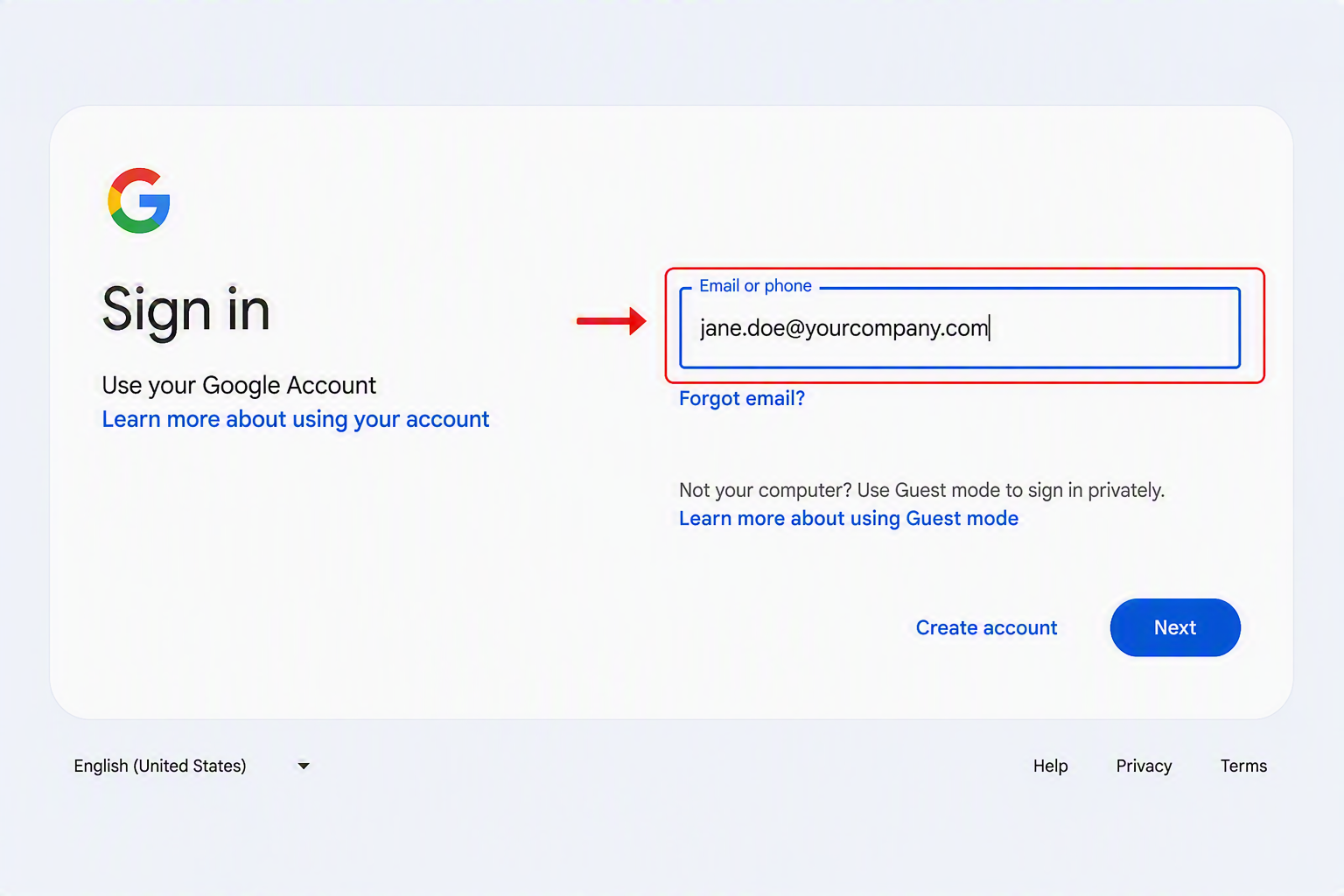
Step 1: Check Whether You Already Have a Google Account
- Open a browser and navigate to the Google sign-in page.
- Enter your company email address.
- Select Next.
If Google Recognizes Your Email
If Google prompts you for a password, you already have a Google account associated with your company email address.
Skip ahead to Step 3: Sign In to Chrome.
If Google Does Not Recognize Your Email
If Google reports that no account exists, you’ll need to create one using your company email address.
Continue to the next section.
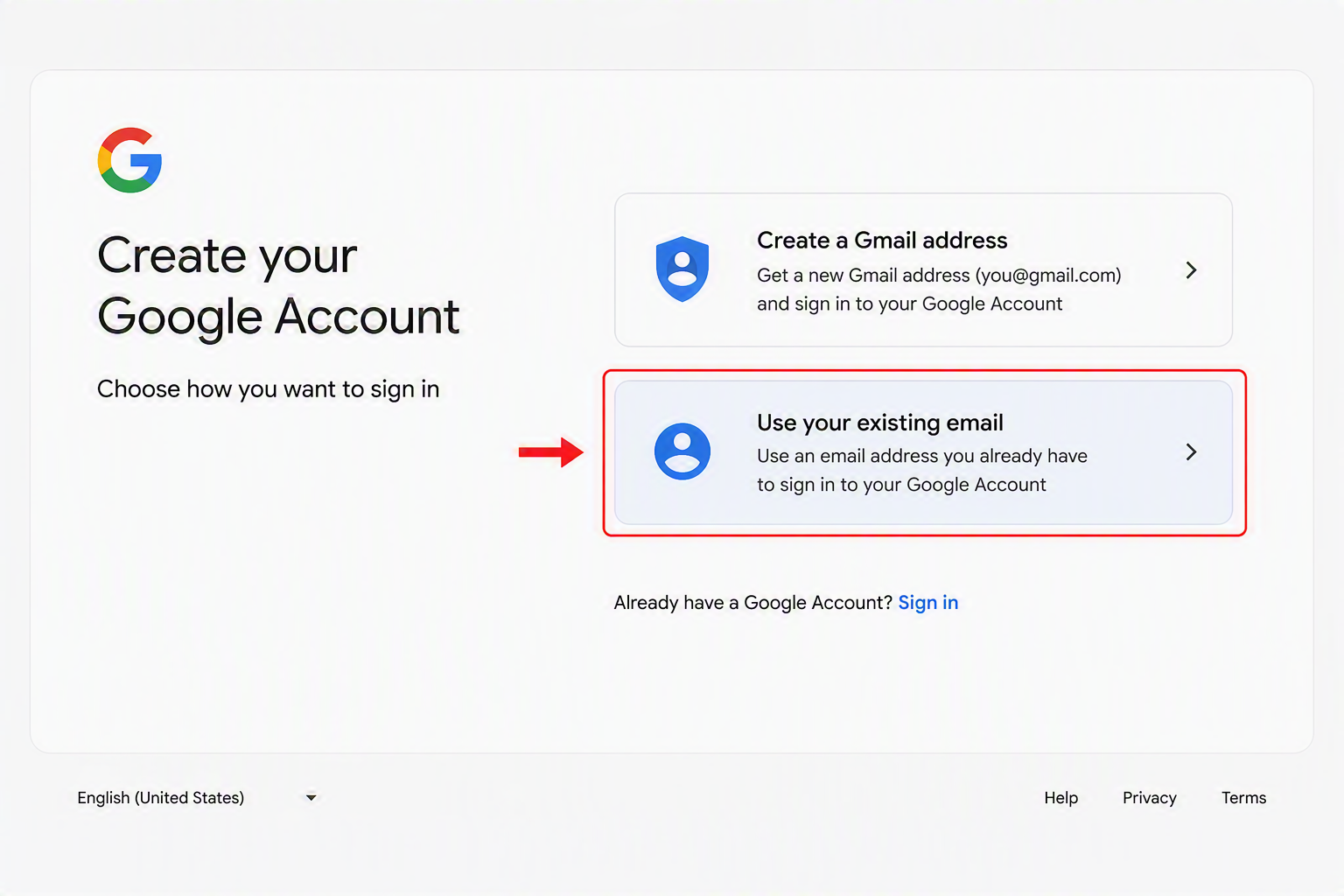
Step 2: Create a Google Account Using Your Company Email Address
If you don’t already have a Google account tied to your work email address:
- Visit the Google Account creation page.
- Select Create Account.
- Choose For Personal Use.
- Select Use your existing email.
- Enter your company email address.
- Complete the email verification process.
- Create a strong password.
- Finish the account setup.
Important: Use your existing company email address whenever possible. Creating a separate Gmail address can make account ownership and recovery more difficult later.
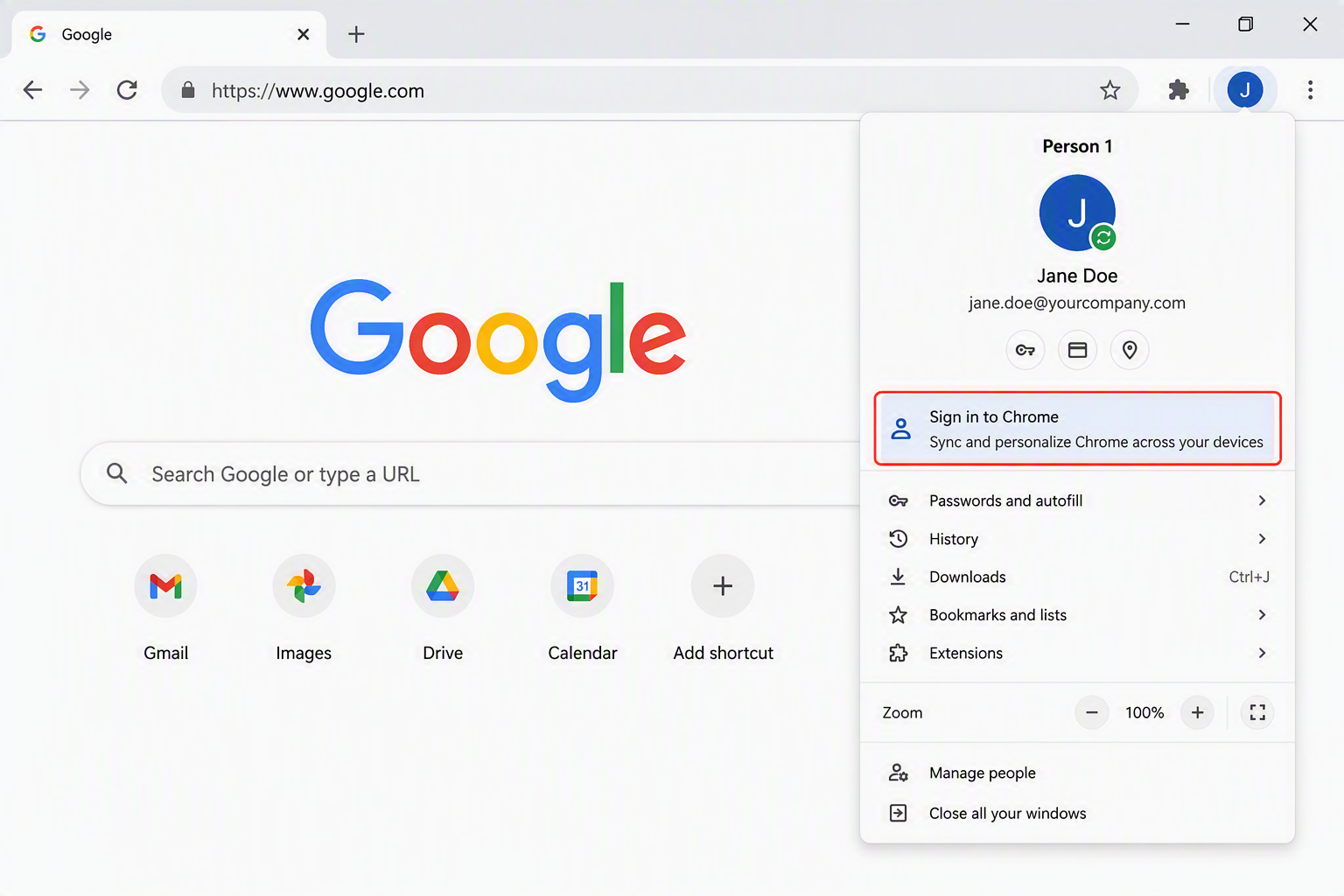
Step 3: Sign In to Google Chrome
- Open Google Chrome.
- Select the profile icon in the upper-right corner.
- Click Sign In to Chrome.
- Enter the credentials for your Google account associated with your company email address.
- Complete any verification prompts.
Step 4: Enable Chrome Sync
Once signed in:
- Chrome will ask if you want to turn on synchronization.
- Select Turn On Sync.
- Review the synchronization options.
- Choose Sync Everything or select the items you want synchronized.
For most business users, we recommend syncing:
- Bookmarks
- Passwords
- Autofill Information
- Extensions
- Browser Settings
- Browsing History
- Open Tabs
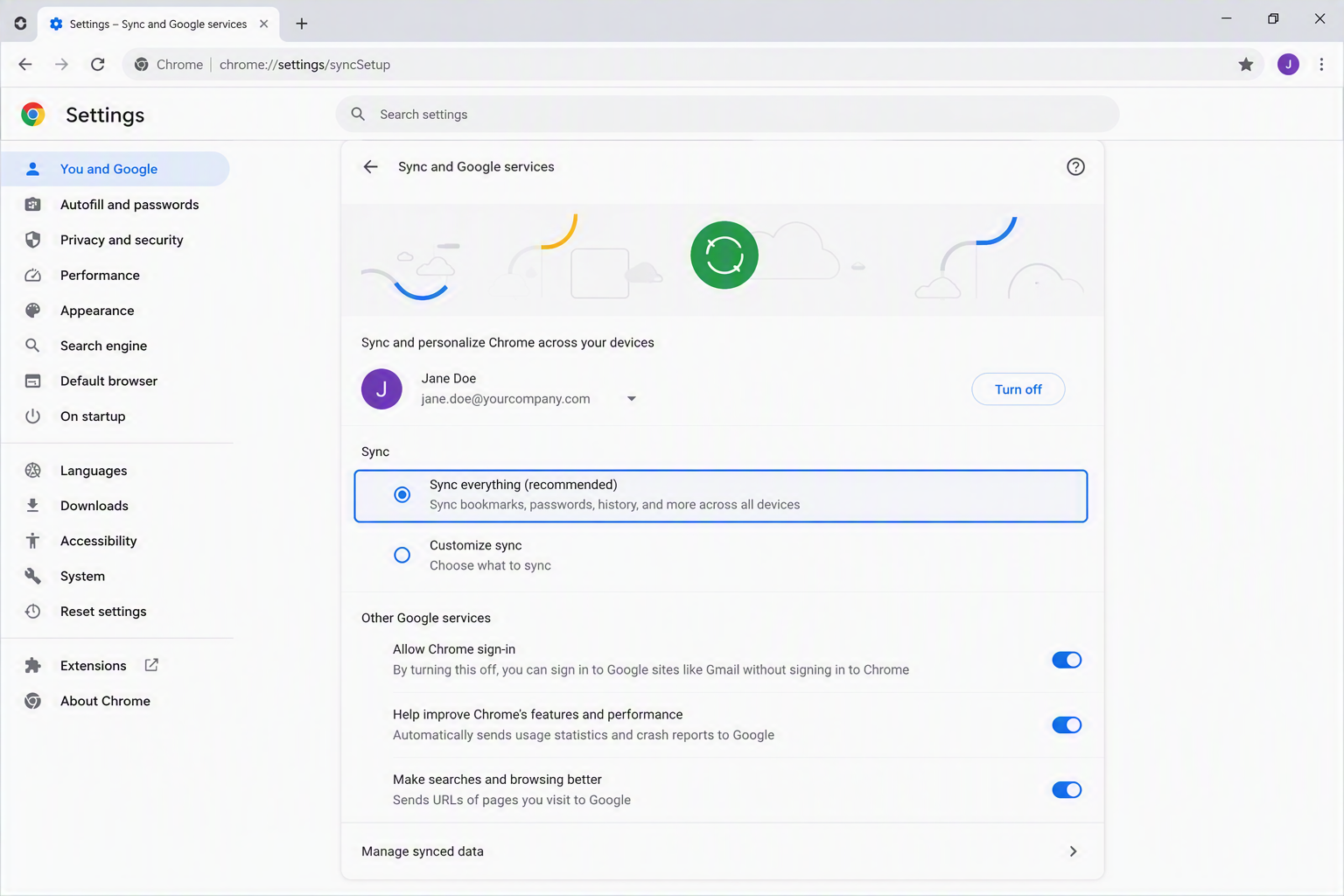
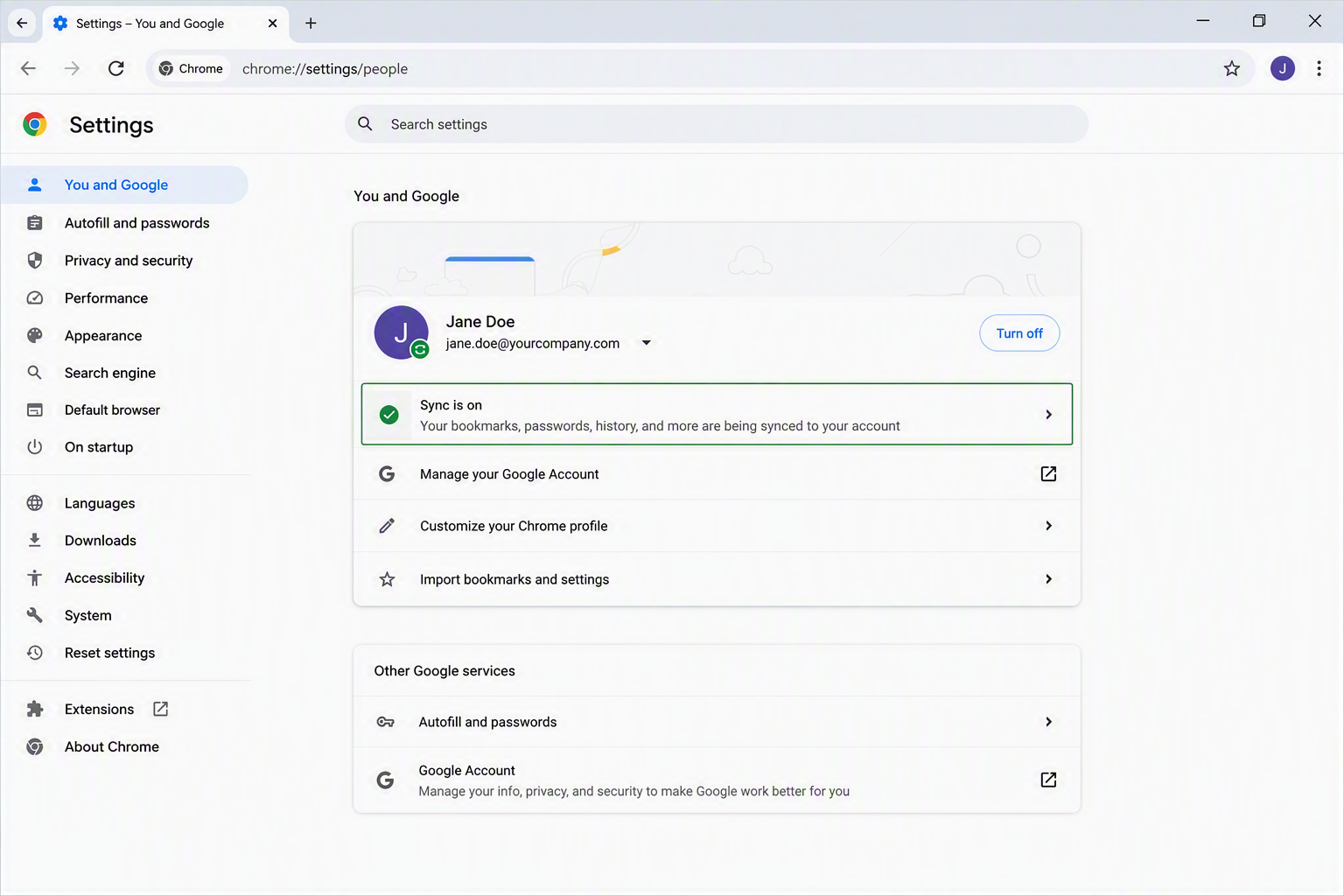
Step 5: Verify Synchronization
To confirm Chrome Sync is functioning correctly:
- Open Settings in Chrome.
- Select You and Google.
- Verify that Chrome displays Sync is On.
- Create a new bookmark.
- Sign into Chrome on another device with the same account.
- Confirm that the bookmark appears on the second device.
If the bookmark appears, synchronization is working properly.
Security Best Practices
Use Your Company Email Address
Business bookmarks and browser settings should remain associated with your work identity. Avoid storing company information in personal browser profiles whenever possible.
Enable Multi-Factor Authentication (MFA)
Adding MFA significantly improves security and helps protect browser data, saved passwords, and account access.
If your organization uses Microsoft 365, review our related security guidance in the GreenLoop Knowledge Base.
Separate Personal and Business Browsing
If you use Chrome for both personal and work activities, consider creating separate Chrome profiles. This helps keep company bookmarks and credentials separate from personal accounts.
Keep Recovery Information Current
Ensure recovery email addresses and phone numbers remain up to date so Google can verify your identity if account recovery becomes necessary.
Troubleshooting
Sync Is Not Working
If bookmarks aren’t syncing:
-
- Verify you’re signed into the correct Google account.
- Confirm that Sync is enabled under Chrome Settings.
- Check your internet connection.
- Restart Chrome.
- Sign out and sign back into Chrome.
Bookmarks Are Missing
- Confirm you’re using the correct Chrome profile.
- Verify that bookmarks are enabled within Sync Settings.
- Check that all devices are signed into the same Google account.
Your Organization Restricts Google Accounts
Some organizations limit or block the use of external synchronization services. If Chrome Sync is unavailable in your environment, consult your IT department before proceeding.
Frequently Asked Questions
Can I use my Microsoft 365 email address with Chrome Sync?
Yes. Google allows you to create a Google account using most business email addresses, including Microsoft 365-hosted domains.
Will my bookmarks sync to multiple computers?
Yes. Any computer signed into Chrome using the same Google account can receive synchronized bookmarks and settings.
Does Chrome Sync include passwords?
Yes, if password synchronization is enabled in Sync Settings.
What happens if I replace my computer?
Once you sign into Chrome on the new device with the same Google account, your bookmarks, settings, and synchronized data will automatically become available.
Can my company manage Chrome Sync centrally?
Yes. Organizations using Google Workspace or Chrome Enterprise may be able to manage browser settings and synchronization policies centrally. Contact us to talk about setting this up for your organization, and optionally linking authentication to your Microsoft 365 tenant.
Need Help?
If you need help setting up Chrome Sync, managing browser profiles, enabling multi-factor authentication, or securing business accounts, GreenLoop is here to help.
Helpful Resources
Our team can help you implement secure browser management, account protection, and productivity tools that make it easier to work from anywhere.
