


GreenLoop IT Solutions : Articles
How to Set Up Microsoft Edge Favorites Sync for Business Use
If you use Microsoft Edge on more than one computer, enabling Edge Sync can save time and improve productivity. When synchronization is enabled, your favorites (often called bookmarks), saved passwords, browser settings, extensions, and open tabs automatically follow you from one device to another.
For business users, we strongly recommend syncing with your Microsoft 365 work or school account rather than a personal Microsoft account. Because Edge runs on the same identity platform as Microsoft 365, most business users already have this account ready to go — there’s no need to create a new one. This keeps business-related favorites and browser settings tied to your work identity, making it easier to manage devices, support users, and maintain business continuity when equipment is replaced.
Why Use Edge Sync?
Edge Sync provides several benefits for business users:
- Access favorites from any device
- Keep browser settings consistent across computers
- Securely sync saved passwords
- Retain browser extensions and preferences
- Quickly restore your browser environment after replacing a computer
- Reduce time spent recreating favorites and settings
- Stay signed in with the same identity you already use for Outlook, Teams, and SharePoint
Before You Begin
You’ll need:
- Microsoft Edge installed on your computer
- Your Microsoft 365 work or school account (the same one you use for Outlook, Teams, or SharePoint)
- Internet access
Unlike some other browsers, most business users don’t need to create a new account for Edge Sync — your existing Microsoft 365 credentials work right out of the box.
Step 1: Confirm You’re Using Your Work Account
- Open Microsoft Edge.
- Select the profile icon in the upper-right corner.
- Check whether you’re already signed in with your work or school account (it typically displays your company email address and organization name).
If Edge Already Shows Your Work Account
If you’re already signed in with your work account, skip ahead to Step 3: Enable Edge Sync.
If You’re Signed In With a Personal Account, or Not Signed In
Continue to the next section to add your work account.
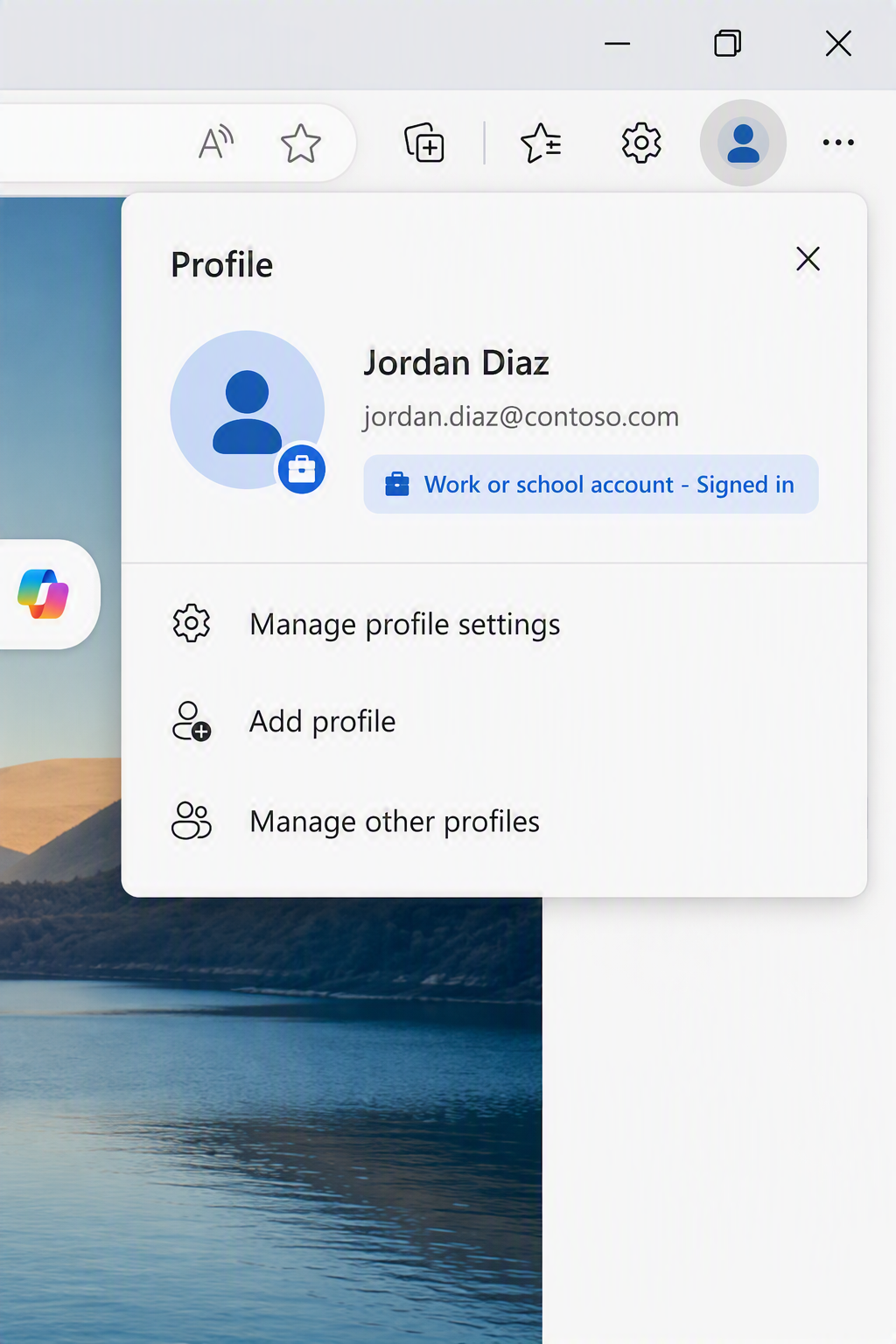
Step 2: Add Your Microsoft 365 Work Account to Edge
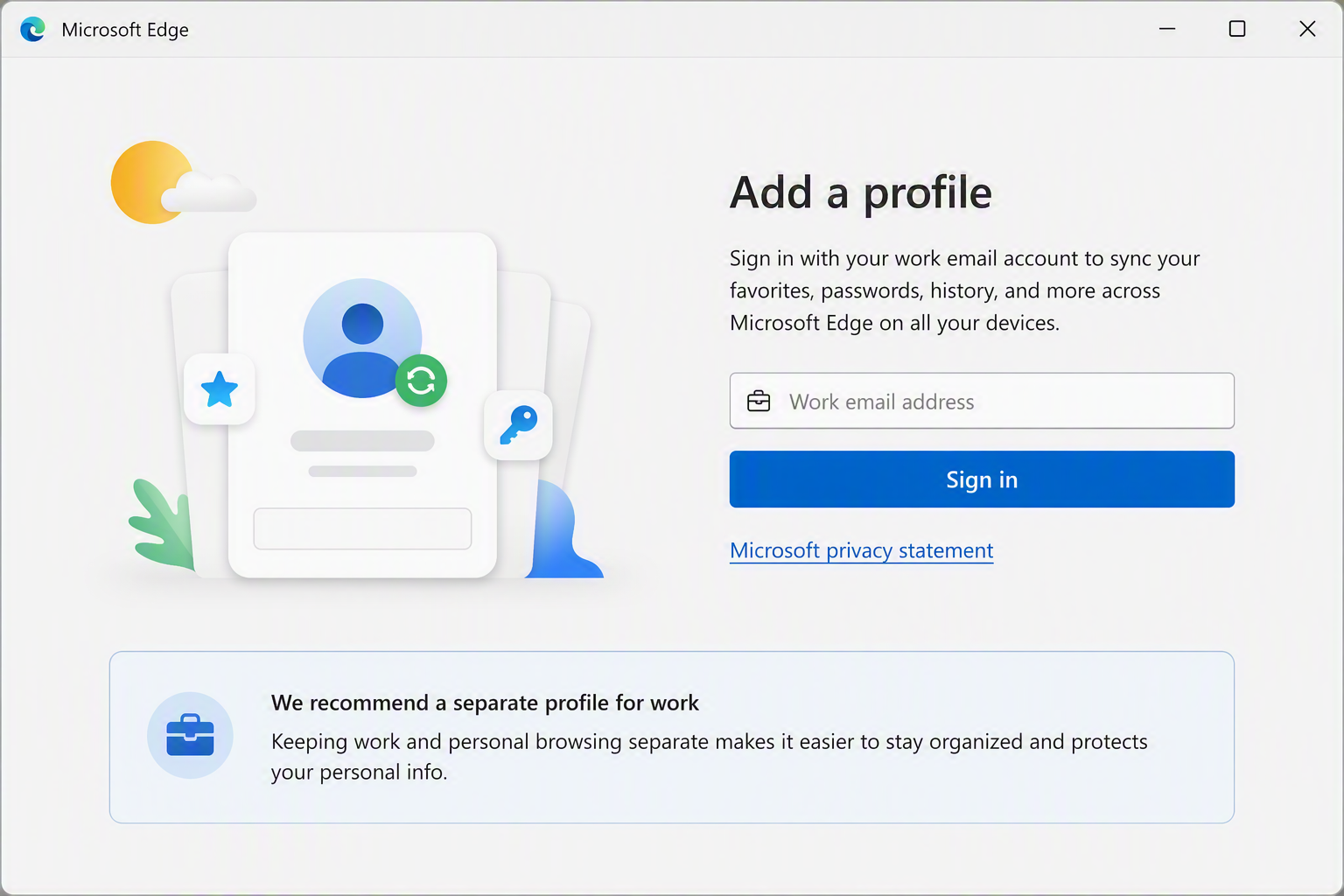
- Select the profile icon in the upper-right corner.
- Select Add profile (or Other profiles) — do not select an existing personal profile.
- When prompted, choose to create a new profile for the work account rather than adding it to a profile you already use for personal browsing.
- Choose Sign in and enter your company email address.
- Enter your password and complete any multi-factor authentication (MFA) prompts.
- If prompted to let your organization manage the device, follow the guidance provided by GreenLoop or your IT department.
Important: Always create a new, separate profile for your work account. Adding your Microsoft 365 work account to a profile that already contains personal favorites, passwords, and history mixes business and personal data in ways that are difficult to separate later — and can complicate device offboarding if you leave the company. Each profile has its own separate set of favorites, passwords, and sync data.
Step 3: Enable Edge Sync
Once signed in with your work account:
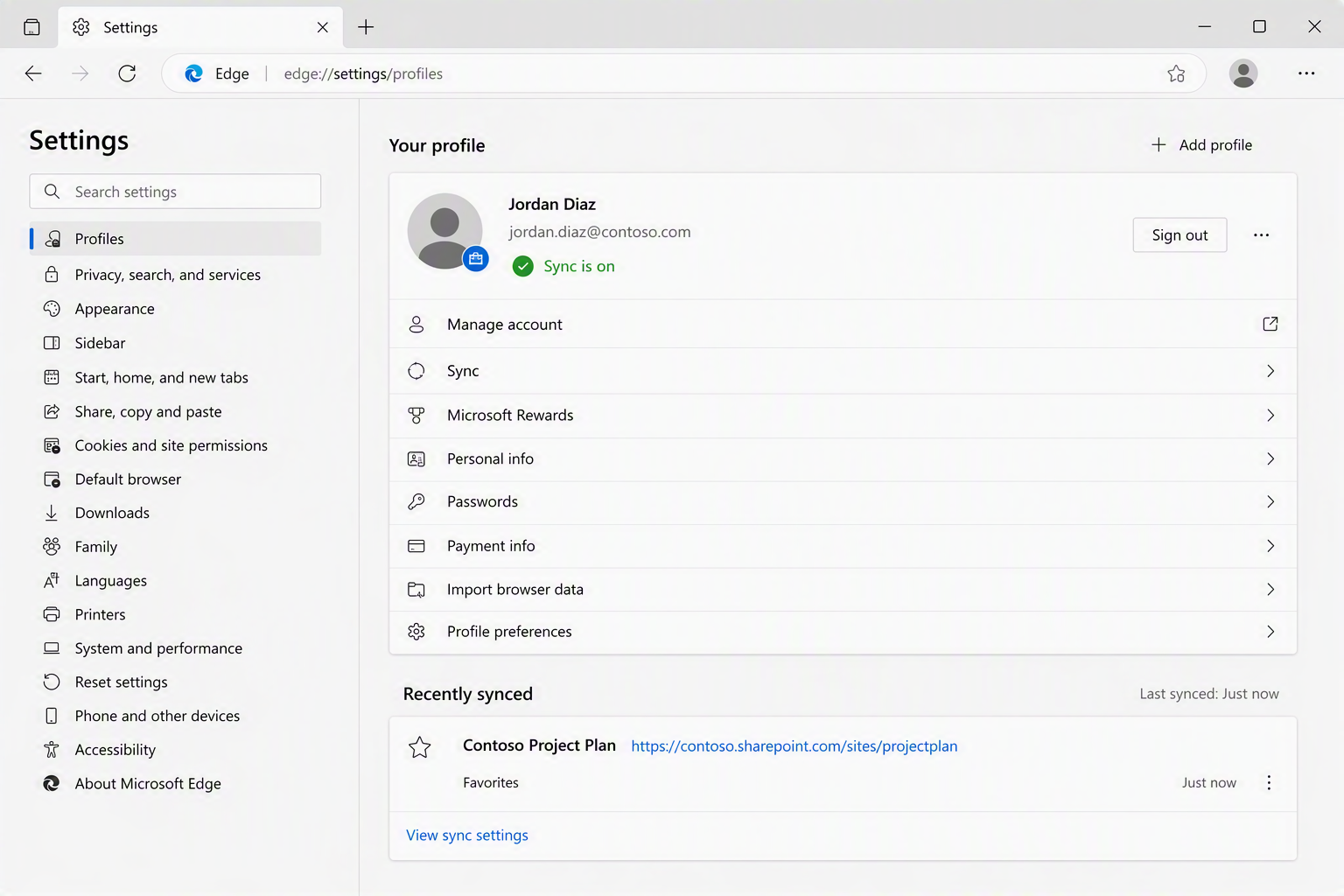
- Select the profile icon, then select Manage profile settings (or go to Settings > Profiles > Sync).
- Turn on sync if it isn’t already enabled.
- Review the synchronization options.
- Choose Sync everything or select the items you want synchronized.
For most business users, we recommend syncing:
- Favorites
- Passwords
- Addresses and More (Autofill)
- Extensions
- Browser Settings
- History
- Open Tabs
Step 4: Verify Synchronization
To confirm Edge Sync is functioning correctly:
- Open Settings in Edge.
- Select Profiles > Sync.
- Verify that Edge displays Sync is on.
- Create a new favorite.
- Sign into Edge on another device with the same work account.
- Confirm that the favorite appears on the second device.
If the favorite appears, synchronization is working properly.
Security Best Practices
Use Your Work Account
Business favorites and browser settings should remain associated with your work identity. Avoid storing company information in a personal Edge profile whenever possible.
Enable Multi-Factor Authentication (MFA)
Because Edge Sync uses your Microsoft 365 identity, MFA already required for your organization automatically protects your synced browser data as well. If your organization hasn’t required MFA yet, review our related security guidance in the GreenLoop Knowledge Base.
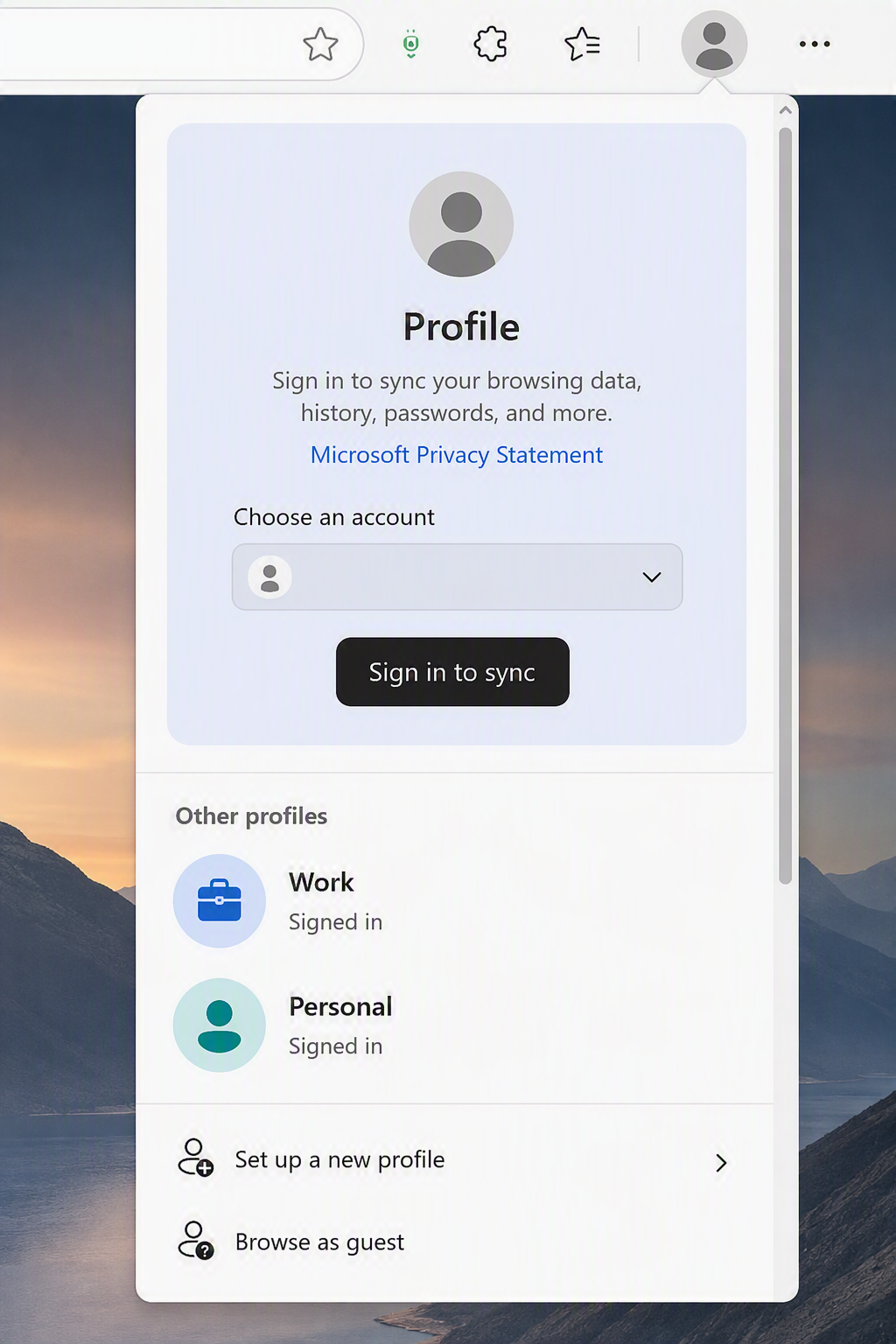
Use Separate Profiles for Personal and Business Browsing
Unlike some browsers, Edge is built around profiles as its primary way of separating identities, and most business users are already using Edge as their default Windows browser for personal tasks before they ever add a work account. Keep a dedicated profile signed in with your work account, and a separate profile or browser for personal browsing.
A few additional things to know:
- Automatic profile switching: Edge can detect when you open a work resource (such as a SharePoint or Microsoft 365 link) in your personal profile and prompt you to switch to your work profile automatically, reducing the chance of cross-contaminating data.
- Centrally enforced separation: Organizations using Microsoft Intune or Conditional Access can enforce profile separation directly — for example, blocking copy/paste or file downloads between work and personal profiles, or preventing sign-in to a personal Microsoft account on a managed device entirely.
- Visual differentiation: Give each profile a distinct name, avatar, and browser color (available under Settings > Profiles) so it’s immediately obvious which profile is active.
Keep Recovery Information Current
Ensure the recovery information on file with your organization’s IT department remains up to date so your identity can be verified if account recovery becomes necessary.
Troubleshooting
Sync Is Not Working
If favorites aren’t syncing:
- Verify you’re signed into the correct Microsoft account (work vs. personal).
- Confirm that Sync is enabled under Edge Settings > Profiles > Sync.
- Check your internet connection.
- Restart Edge.
- Sign out and sign back into Edge.
Favorites Are Missing
- Confirm you’re using the correct Edge profile.
- Verify that Favorites are enabled within Sync Settings.
- Check that all devices are signed into the same work account.
You Already Added Your Work Account to a Personal Profile
If you signed into your existing personal Edge profile with your work account instead of creating a new one:
- Add a new profile and sign in with your work account there instead.
- In the original (personal) profile, remove the work account under Settings > Profiles.
- Review that profile’s favorites, passwords, and saved data to confirm no business information remains before continuing to use it for personal browsing.
- Contact GreenLoop if you’re unsure which items are business-related or need help migrating favorites between profiles.
Your Organization Restricts Sync
Some organizations manage Edge centrally through Microsoft Intune or Conditional Access policies and may restrict or disable sync for certain data types. If Edge Sync is unavailable or limited in your environment, consult your IT department before proceeding.
Frequently Asked Questions
Do I need to create a new account to use Edge Sync?
No. If your organization uses Microsoft 365, you already have the account you need — just sign in to Edge with your existing work or school credentials.
Will my favorites sync to multiple computers?
Yes. Any computer signed into Edge using the same Microsoft 365 work account can receive synchronized favorites and settings.
Does Edge Sync include passwords?
Yes, if password synchronization is enabled in Sync Settings.
What happens if I replace my computer?
Once you sign into Edge on the new device with the same work account, your favorites, settings, and synchronized data will automatically become available.
Should I use the same profile for work and personal browsing?
No. Use a dedicated profile for your work account and a separate profile for personal browsing. This keeps business favorites, passwords, and history properly separated, simplifies IT support, and avoids complications if you ever leave the company or your device is offboarded.
Can my company manage Edge Sync centrally?
Yes. Organizations using Microsoft 365 and Microsoft Intune can manage browser settings and synchronization policies centrally, including which data types are allowed to sync and whether personal profiles are permitted on managed devices. Contact us to talk about setting this up for your organization.
Need Help?
If you need help setting up Edge Sync, managing browser profiles, enabling multi-factor authentication, or securing business accounts, GreenLoop is here to help.
Helpful Resources
Our team can help you implement secure browser management, account protection, and productivity tools that make it easier to work from anywhere.
